.png&w=64&q=75)
GitLab + Slack Setup Guide
Connect a GitLab group and start getting smart merge request notifications in Slack in five minutes.
Skip the doc and start now
The setup wizard walks you through every step below. Come back here if you get stuck.
Before you start
- A gitlab.com account (self-managed GitLab is not supported yet)
- The Maintainer role on the projects you want to connect, which GitLab requires to create webhooks. Only the person running the connect step needs it. Teammates need no special role.
- Permission to add an app to your Slack workspace
- About five minutes
Setup steps
Six steps, start to finish. Every screenshot below shows the real screen with placeholder data.
Log in with your GitLab account
Open the GitLab login page and click "Continue with GitLab". This is a standard OAuth sign-in against gitlab.com. There is nothing to install and no token to paste.
One clickAlready signed in with GitHub? Log out first. A session belongs to one provider, and your GitLab groups only appear in a GitLab session.
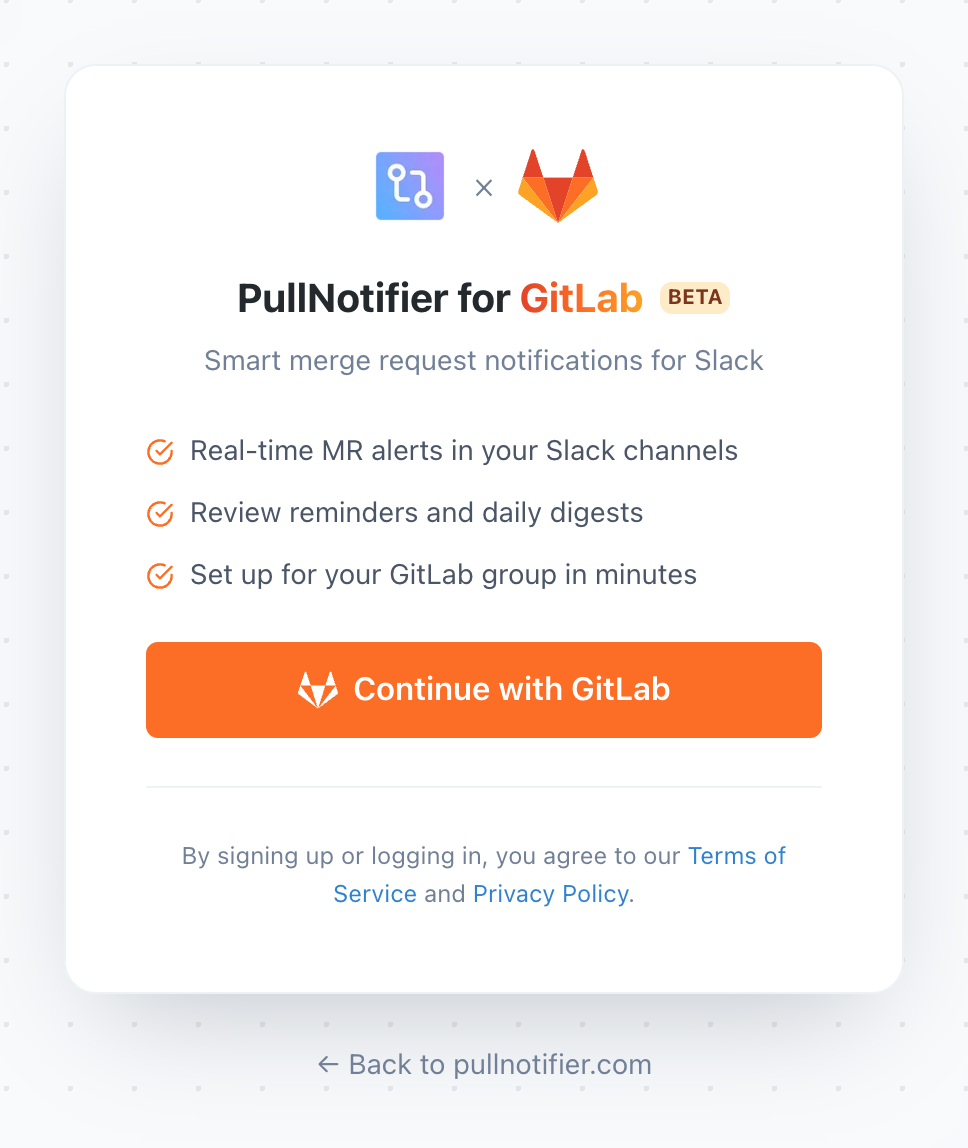
Step 1: sign in at pullnotifier.com/gitlab-login
Authorize API access
PullNotifier asks for API access to your GitLab account. It uses this to list the groups you belong to and to register merge request webhooks on the projects you choose.
ScopesThe token reads merge request metadata and writes webhooks. Creating a webhook is a write, so the read-only read_api scope is not enough for this step. It never reads your source code, and you can revoke it at any time from GitLab under Settings, Applications.
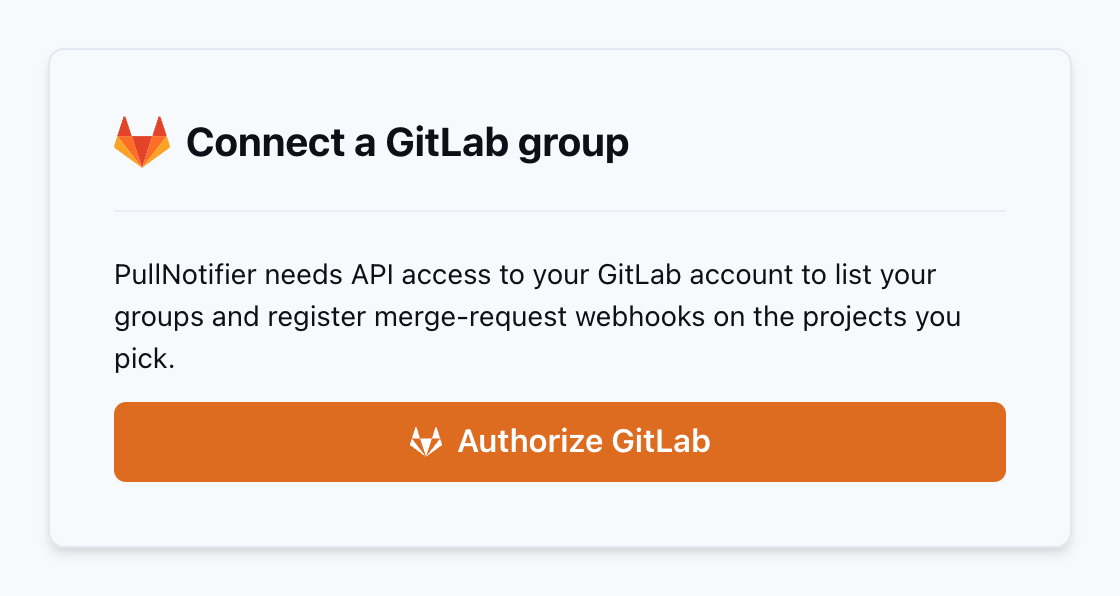
Step 2: grant API access so webhooks can be registered for you
Choose the group to connect
Pick the GitLab group you want notifications for. Subgroups are supported, so connecting a parent group lets you pick projects from any subgroup underneath it.
Maintainer roleOnly groups where you hold the Maintainer role appear here. GitLab requires that role to create project webhooks, so a Developer or Reporter cannot complete this step.
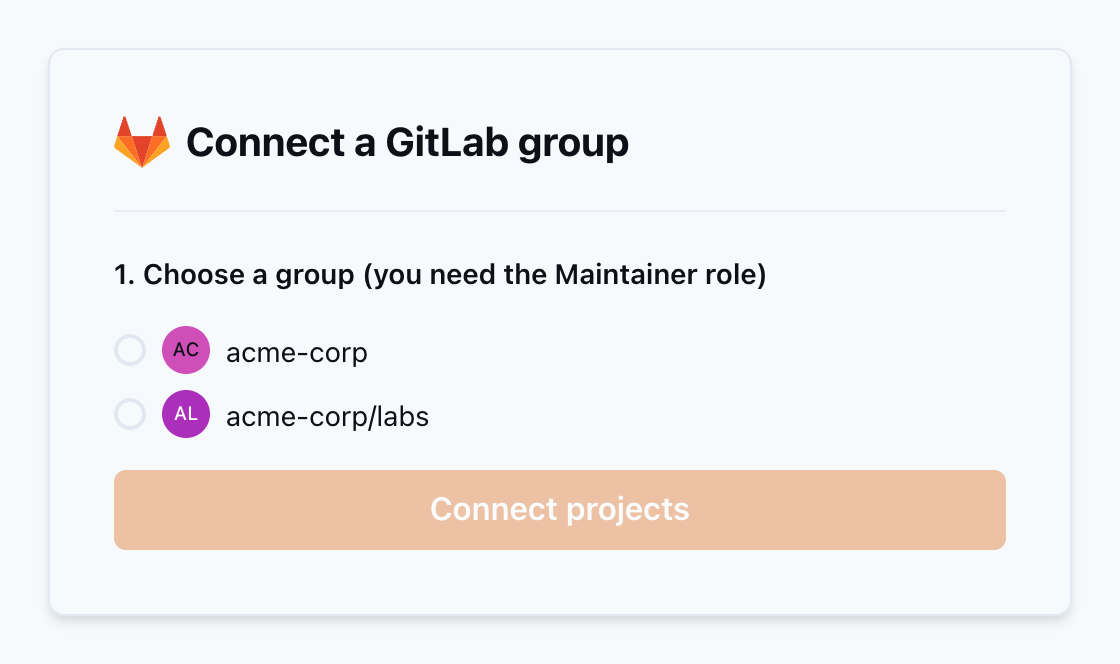
Step 3: groups you can connect, filtered by your role
Pick the projects to notify on
Tick the projects that should send merge request notifications. Start with one or two noisy repositories, then add more later. Nothing is all-or-nothing.
Per projectWebhooks are registered per project, which is available on every GitLab tier including Free. Group webhooks, a Premium feature, are not required.
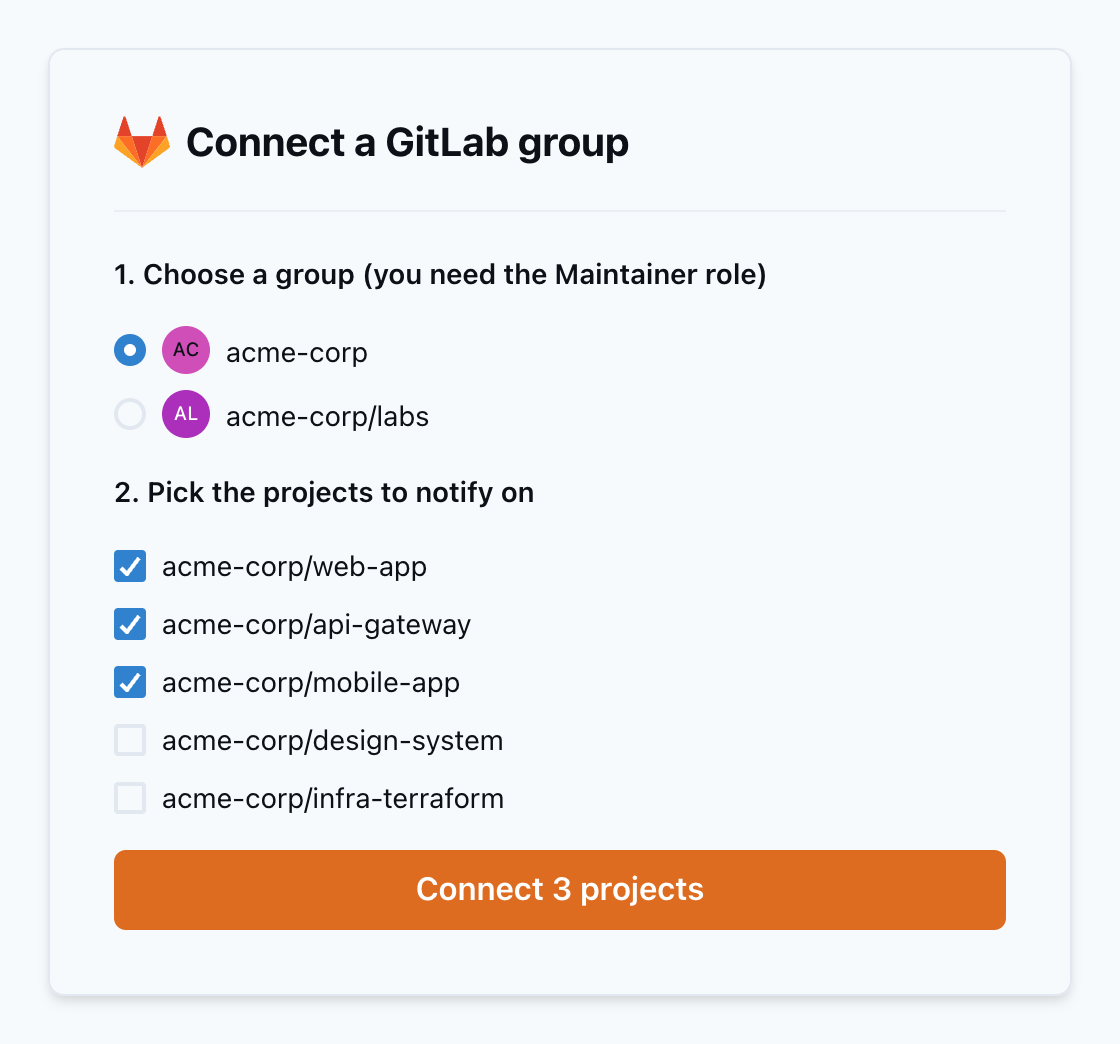
Step 4: select projects, then click Connect
Confirm the webhooks were registered
PullNotifier registers the merge request webhooks for you and takes you to your dashboard. There is no YAML to write and no webhook URL to copy.
AutomaticYou can verify the result in GitLab under each project, Settings, Webhooks. Reconnecting later is safe: hooks are repaired rather than duplicated, and your settings survive.
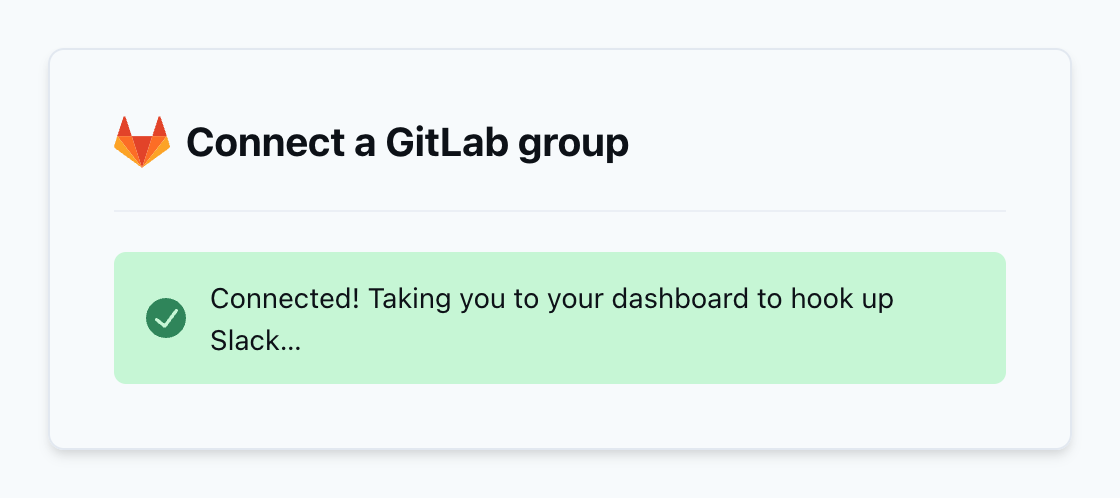
Step 5: webhooks registered, heading to the dashboard
Connect your Slack channel
On the dashboard, click "Select Slack Channel" next to your group. Slack asks you to approve the app and pick the channel that should receive merge request notifications.
Slack OAuthFor a private channel, invite the app after connecting with /invite @PullNotifier. Public channels need no extra step.
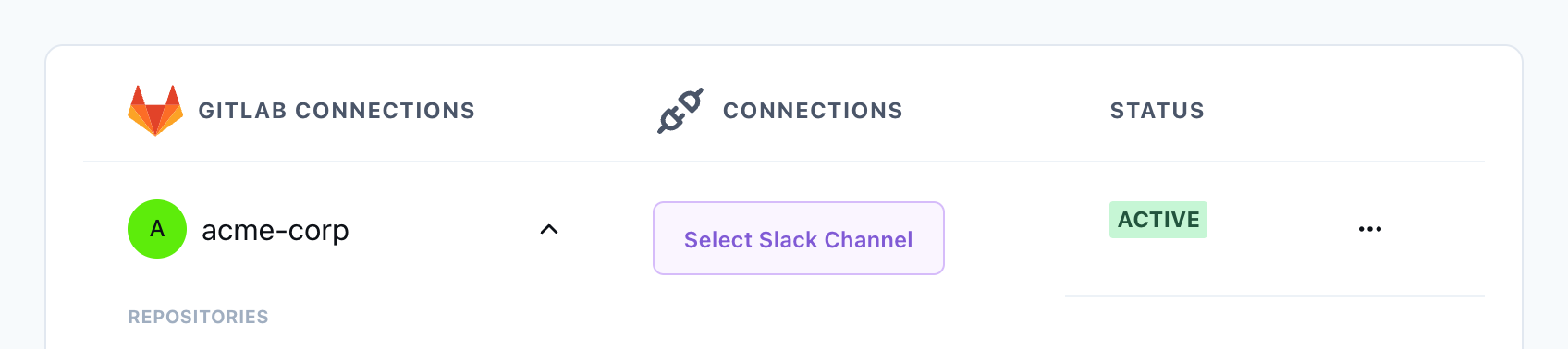
Step 6: pick the default channel for the group, or one per project
That is it, you are live
Your dashboard now shows the group, its connected projects, and the Slack channel each one posts to. The next merge request opened in any of them lands in Slack as a single message that keeps updating itself as the MR moves.
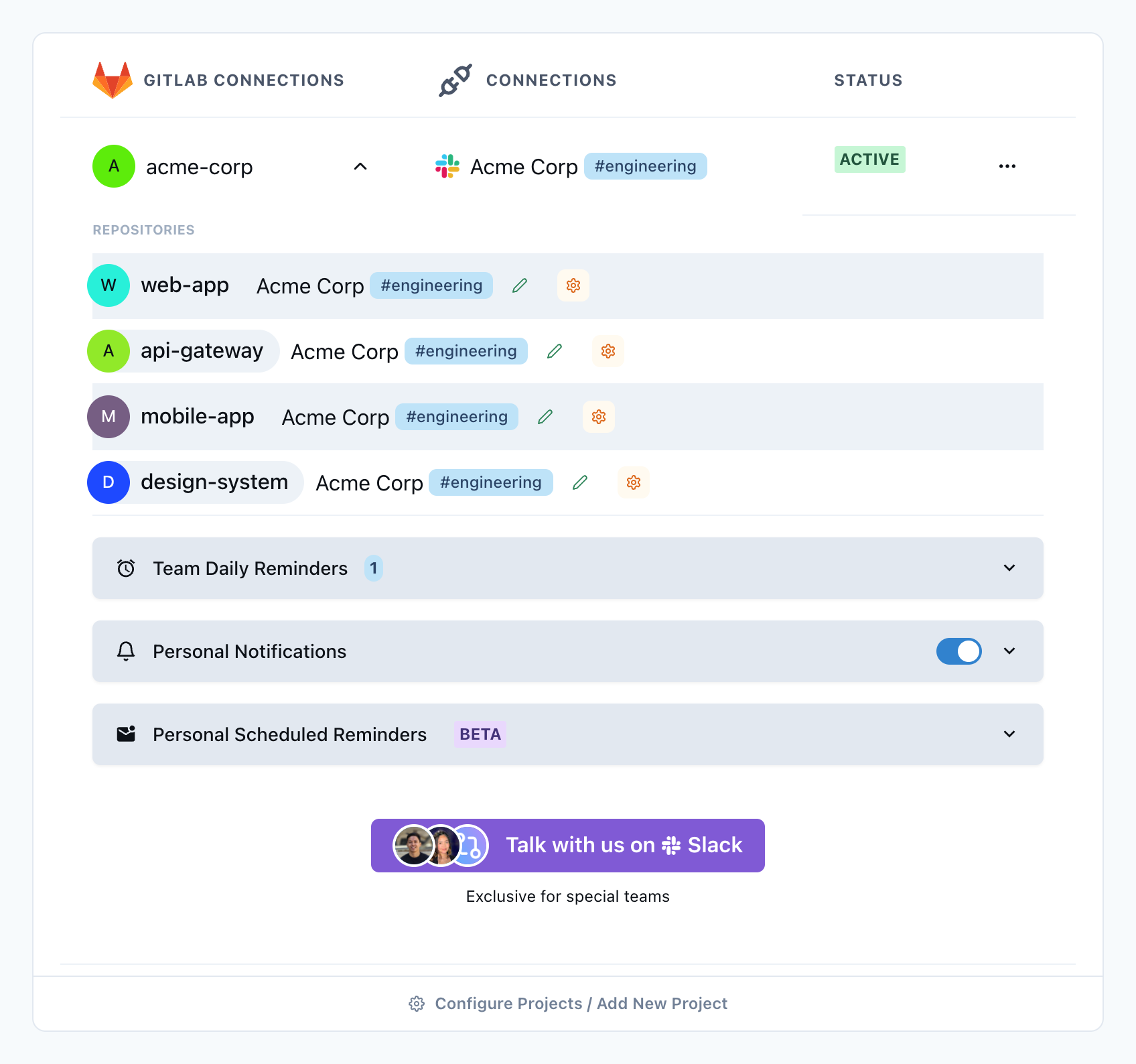
A connected group, its projects, and the channel each one posts to
Fine-tune it (optional)
The defaults work out of the box. These three settings are the ones teams reach for first.
Set per-project rules
Open the gear icon on any project to set the approvals it needs, mute comment notifications, route by label, or send a specific author or reviewer to a different channel.
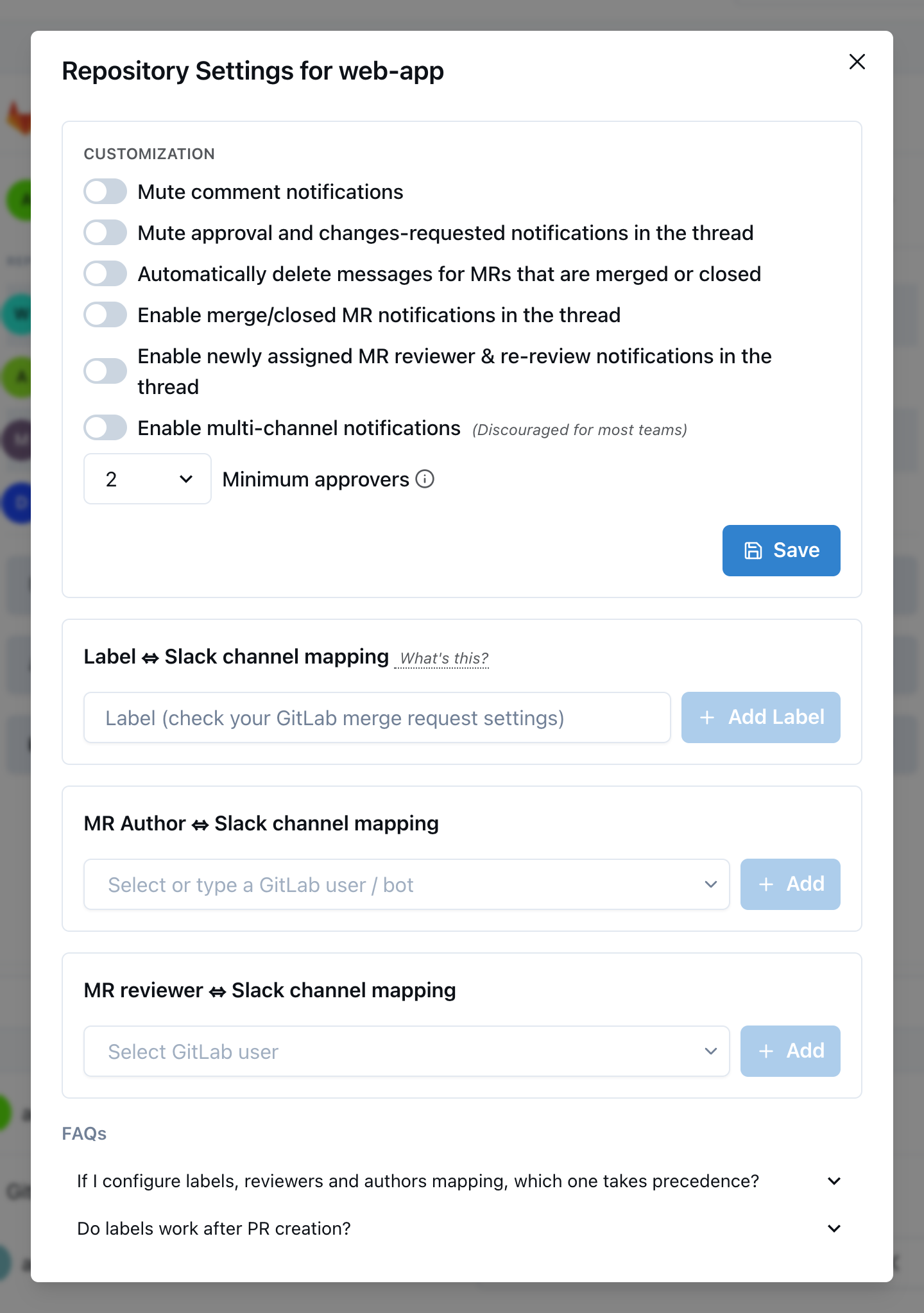
Per-project settings, including label and reviewer routing
Add a daily digest
Team Daily Reminders posts a summary of open and stale merge requests at a time you choose, in the timezone you choose. It is the fastest way to unblock reviews without nagging.
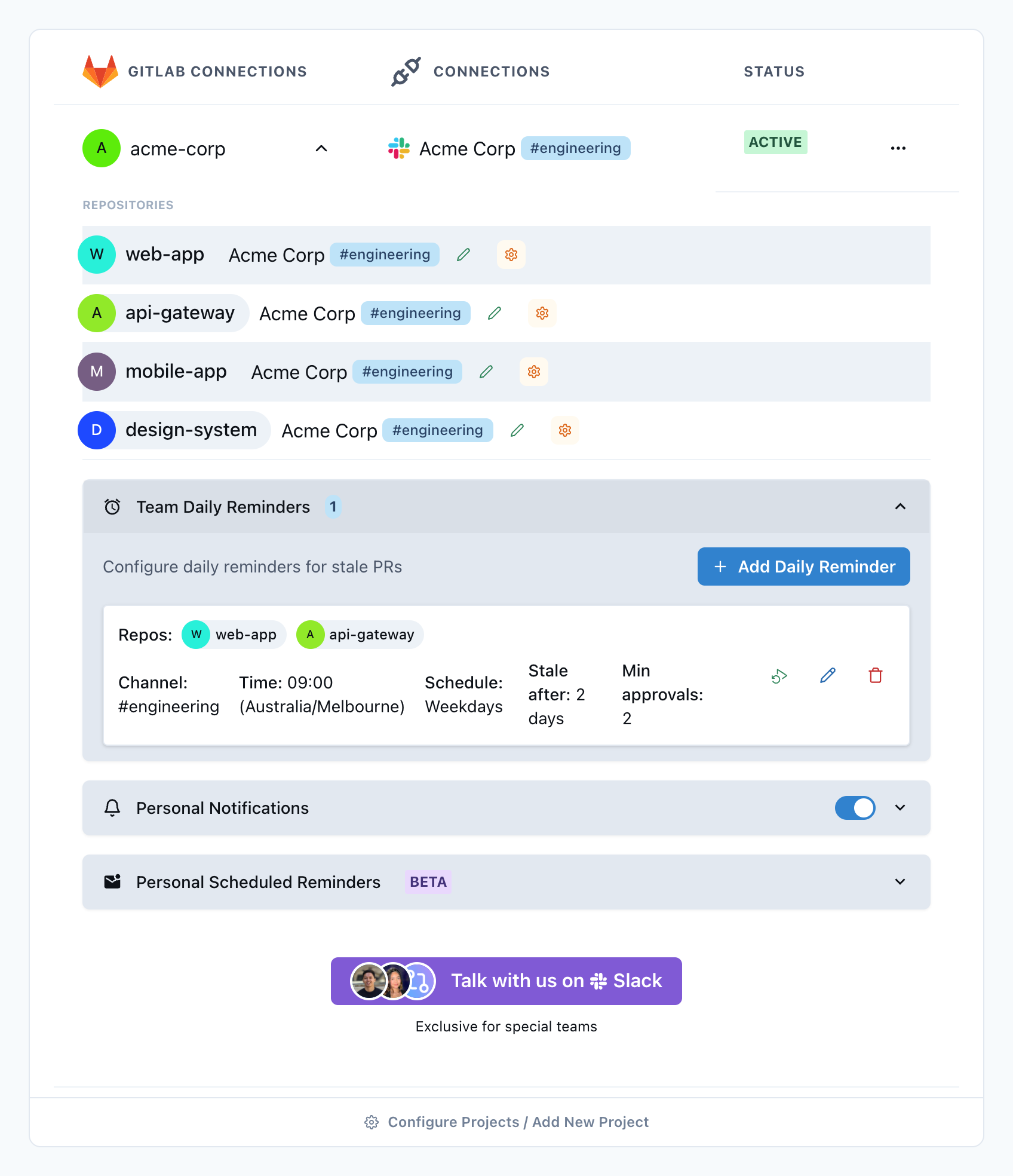
A weekday digest of stale merge requests
Map GitLab users to Slack users
Mapping turns notifications into real @mentions, so a review request actually pings the reviewer instead of printing their username as plain text.
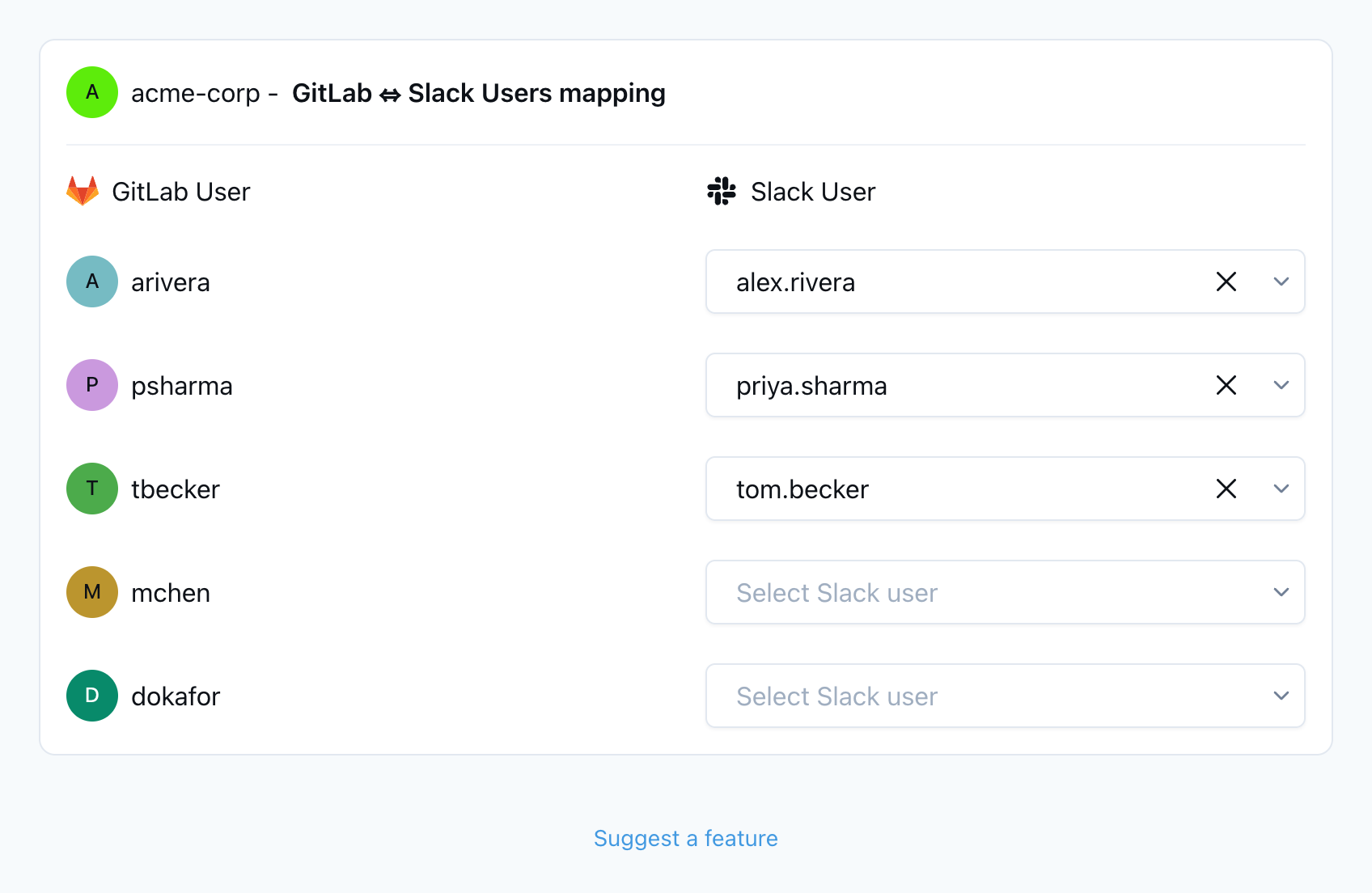
Map once, then every mention resolves correctly
What you get
One live message per merge request, updated in place instead of a new post per event
Approvals, comments, and commits collected in the message thread
Notifications for opened, reopened, merged, closed, draft and ready transitions
Routing by label, author, or reviewer, per project or across the whole group
A daily digest of stale merge requests, in your timezone
Personal DMs for review requests and mentions
Real @mentions once GitLab users are mapped to Slack users
Works on GitLab Free, because it uses per-project webhooks
Troubleshooting
- Your group is not in the list: you need the Maintainer role on it. Ask an owner to raise your role, or have them run the connect step instead.
- Nothing arrives in a private channel: invite the app to it with /invite @PullNotifier. Public channels do not need this.
- You logged in with GitHub by mistake: log out and sign back in with GitLab. Each session shows one provider's connections.
- A project is missing after connecting: open "Configure Projects / Add New Project" on the dashboard and tick it there.
- Mentions show as plain text: map the GitLab user to a Slack user on the mapping screen shown above.
Setup FAQ
How long does GitLab and Slack setup take?
About five minutes. Log in with GitLab, authorize API access, pick a group and its projects, then connect a Slack channel. PullNotifier registers the webhooks for you.
Do I need a paid GitLab plan?
No. PullNotifier registers per-project webhooks, which every GitLab tier includes, Free among them. Group webhooks, a Premium feature, are not required.
What GitLab role do I need?
Maintainer (or Owner) on each project you connect, and only for the person who runs the connect step. GitLab requires that role to create project webhooks, so a Developer or Reporter cannot finish the step. Teammates who use the notifications afterwards need no special role: any membership in the group, Guest included, is enough to see the dashboard.
Can I connect with a read-only scope or a lower role?
Not today. Webhook registration is the one write PullNotifier makes, and GitLab gates it behind both the api scope and the Maintainer role. Everything else (open merge requests, approvals, comments, members) is read-only. If you are not a Maintainer, ask one to run the five-minute connect step once; you can manage channels and rules afterwards with any role.
Does it work with self-managed GitLab?
Not yet. gitlab.com is supported today and self-managed support is on the roadmap. Contact us if your team needs it and we will keep you posted.
Can different projects post to different Slack channels?
Yes. Set a default channel for the group, then override it per project, or route by label, author, or reviewer from the project settings screen.
Are subgroups supported?
Yes. Connect a parent group and pick projects from any subgroup underneath it.
Why do I not see "changes requested" notifications?
GitLab fires no webhook and exposes no API state when a reviewer uses "Request changes", so no integration can detect it (tracked upstream as GitLab issue 592358). Approvals, comments, and every other review signal come through normally.
Can I add more projects later?
Yes. Click "Configure Projects / Add New Project" on the dashboard and tick the new ones. Projects that are already connected stay connected and cannot be unticked by accident.