.png&w=64&q=75)
GitLab Microsoft Teams Integration: The Complete Guide for 2026
Four ways to get GitLab merge request, pipeline, and issue notifications into Microsoft Teams: the native integration after the Office 365 Connector retirement, raw webhooks, automation platforms, and a dedicated Teams bot. Real steps, honest limits, and the fixes for the errors you will hit.
Gabriel Pineda
Founder, PullNotifier
·
Published September 13, 2026
·
16 min read
Free for teams under 4 developers. No Power Automate, no credit card.
On this page
The basics
What a GitLab Microsoft Teams integration actually means
People searching for a GitLab Microsoft Teams integration usually want one of two different things, and most guides blur them together. The first is channel notifications: when something happens in GitLab, a card shows up in a Teams channel. Push events, pipeline results, new issues, merge requests. This is a broadcast problem and GitLab solves it out of the box, with some caveats we cover below.
The second is a merge request review workflow: the right reviewer gets pinged when they are asked to review, the team can see which MRs are approved and which are blocked, comments and approvals land where the conversation already is, and the noise stays out. This is a coordination problem. A card per event does not solve it, because the channel fills with history and nobody can tell what needs attention right now.
Unlike GitHub, GitLab does not publish a bot in the Microsoft Teams app store. Its integration is a project setting that posts to a webhook URL. Since Microsoft retired Office 365 Connectors, that webhook has to be created through the Workflows app (Power Automate), and the workflow has to be edited by hand before GitLab cards render. That change is why so many GitLab teams found their Teams notifications silently stopped in 2025 and 2026, and why this guide exists.
Who this guide is for
Engineering teams on gitlab.com or self-managed GitLab whose chat lives in Microsoft Teams. If you are on Slack instead, see the GitLab Slack integration guide. If you use GitHub with Teams, the GitHub Microsoft Teams guide is the twin of this page.
Picking an approach
The 4 ways to send GitLab notifications to Microsoft Teams
Decide which problem you are solving before you configure anything. Each option below is a legitimate choice for a specific situation, and several teams run two of them side by side: the native integration for pipelines, a dedicated tool for merge requests.
Native GitLab integration
One project, one channel, every event type. Free, but needs Power Automate.
Pros
Built into every GitLab tier
Covers push, pipelines, issues, wiki too
No third-party app to approve
Cons
One Teams workflow per project and channel
New card per event, nothing updates
Reviewers are never mentioned
Raw webhook or CI job
Pipeline and deploy alerts you want to design yourself.
Pros
Full control of the Adaptive Card
Lives in .gitlab-ci.yml next to the code
Nothing to install in Teams
Cons
You maintain the JSON forever
One-way, no state, no threads
Not built for merge request review
Zapier, n8n, Make
Small teams already paying for an automation platform.
Pros
Visual builder, no code
Filters and branching per event
Can fan out to email or Jira too
Cons
Priced per event, MRs are chatty
Cards are static, no live status
Another vendor holding your tokens
PullNotifier
Merge request review at scale, GitLab Free tier friendly.
Pros
One live card per MR with approvals
Reviewer @mentions via user mapping
Five minutes, no Power Automate
Cons
Merge requests only, no pipelines
gitlab.com only for now
Paid above 4 developers
Method 1: native integration
How GitLab's Microsoft Teams notifications work in 2026
GitLab's built-in option is called Microsoft Teams notifications and lives under each project's Settings, then Integrations. It is available on every tier (Free, Premium, Ultimate) and on gitlab.com, self-managed, and Dedicated. Conceptually it is simple: GitLab has a webhook URL for a Teams channel, and for each enabled event it posts a card to that URL.
What changed is where the URL comes from. Until 2024 you created an “Incoming Webhook” connector on the channel and were done. Microsoft has since retired Office 365 Connectors: after several extensions of the original deadline, connectors were disabled between May 18 and May 22, 2026. GitLab's own documentation still quotes the earlier December 2025 deadline for moving existing integrations to Power Automate workflows. Every guide that still shows the Connectors menu is out of date, including the top-ranking ones.
The one thing every other tutorial skips
The Workflows template expects an Adaptive Card. GitLab still posts the legacy Office 365 Connector Card. Out of the box, the workflow runs, fails, and nothing appears in the channel. You have to edit the workflow (step 2 below). GitLab tracks the wider migration in issue #476605 and the Adaptive Card rewrite in merge request !162792.
The steps below follow the current GitLab documentation and were checked in September 2026.
Step 1 of 4
Create the Teams workflow and copy its webhook URL
Open Workflows on the target channel
In Microsoft Teams, hover the channel that should receive GitLab notifications, click the three-dot menu, and choose Workflows. If you do not see it, the Workflows app is blocked by your tenant admin and you will need them to allow it (or to create the workflow for you).
Pick the "Send webhook alerts to a channel" template
Search the template list for Send webhook alerts to a channel (older tenants show it as “Post to a channel when a webhook request is received”). Confirm the team and channel, give the flow a name that includes the GitLab project, and save.
Copy the webhook link
On the confirmation dialog click Copy webhook link. The URL starts with a Power Automate domain (for example prod-XX.westus.logic.azure.com or *.powerautomate.com), not webhook.office.com. Keep it somewhere safe. Anyone with this URL can post to the channel.
Create the workflow from a shared account
Workflows run under the identity of whoever created them. Use a service account that will outlive any individual engineer, or every GitLab notification stops the day that person's licence is removed.
Step 2 of 4
Edit the workflow so it accepts GitLab's payload
This is the step that makes or breaks the native integration. The template's last action, “Post card in a chat or channel”, only accepts Adaptive Card JSON. GitLab sends an Office 365 Connector Card inside an attachments array. You swap the action and point it at the right part of the payload.
Open the flow in Power Automate
Go to make.powerautomate.com, open My flows, and edit the flow you just created. You will see two actions: the webhook trigger and “Post card in a chat or channel”.
Delete "Post card in a chat or channel"
Remove the existing post action. Do not try to keep it and add a parallel branch; the failed action will mark every run as failed and you will lose the ability to spot real errors.
Add "Post message in a chat or channel"
Add a new Microsoft Teams action, Post message in a chat or channel, and set:
Post as: Flow bot
Post in: Channel
Team and Channel: the same channel you picked in the template
Paste the expression into the Message field
Click into Message, switch to the expression tab (the fx icon), and paste:
triggerOutputs()?['body']?['attachments'][0]?['content']That expression pulls the first attachment's content out of what GitLab posts and hands it to Teams as the message body. Save the flow. The webhook URL does not change, so nothing else needs updating.
Known bug: “invalid Adaptive Card” even after the fix
GitLab's newer Adaptive Card payload arrives wrapped in contentType and content properties, and Teams rejects the outer wrapper as an invalid card. This is tracked in GitLab issue #565839. The expression above sidesteps it by posting only the inner content. If your instance is on a version where the wrapper changes again, adjust the path rather than the action.
Prefer full control? Skip the template: create an Instant cloud flow with the “When an HTTP request is received” trigger, leave the JSON schema empty, add the same “Post message in a chat or channel” action with the same expression, save, and copy the HTTP URL from the trigger. Same result, and you can add a condition step to drop events you do not want.
Step 3 of 4
Configure the GitLab project
Open the integration page
In the GitLab project, go to Settings, then Integrations, and click Microsoft Teams notifications. You need the Maintainer role on the project.
Activate and paste the webhook URL
Turn on the Active toggle and paste the Workflows URL from step 1 into the Webhook field. If you are replacing an old connector URL, this is the only field you change.
Save and test
Click Save changes, then use the Test settings button. GitLab sends a sample event. Check the channel, and if nothing appears, open the flow's run history in Power Automate: a red run means the expression or action is wrong, no run at all means the URL is wrong.
Doing this for many projects?
The integration is per project. Group-level webhooks exist on GitLab Premium and Ultimate, but the Microsoft Teams integration itself is configured project by project. Budget a few minutes per project, per channel.
Step 4 of 4
Choose the events and branches that notify
The integration page lists the triggers you can enable. Pick deliberately; every tick is a card in the channel.
| Trigger | Fires when | Recommended |
|---|---|---|
| Push | Commits are pushed to a matching branch | Off, unless auditing a release branch |
| Issue | An issue is opened, closed, or reopened | Off for engineering channels |
| Confidential issue | Same, for confidential issues | Off (posts confidential titles) |
| Merge request | An MR is opened, updated, approved, merged, or closed | On |
| Note | A comment is added to a commit, MR, issue, or snippet | On for MR review channels |
| Confidential note | A comment on a confidential issue | Off |
| Tag push | A tag is created or deleted | On for release channels |
| Pipeline | A pipeline finishes | On, with "Notify only broken pipelines" |
| Wiki page | A wiki page is created or edited | Off |
Two options sit under the pipeline trigger. Notify only broken pipelines keeps green runs out of the channel and is the single best noise reduction available. Notify only when status changes suppresses repeats, so a branch that fails five times in a row posts once. Below that, Branches for which notifications are to be sent lets you limit everything to the default branch, protected branches, or a wildcard pattern such as release/*.
A sane default for a team channel
Merge request on, Note on, Pipeline on with broken-only, everything else off, branches set to protected branches. Start there and widen only when someone asks.
The honest gaps
Where the native integration falls short
For pipeline alerts and a single project, the native integration is fine once the workflow is fixed. The same six problems appear the moment a team tries to run merge request review through it.
A new card for every event, nothing ever updates
Open an MR, push twice, get two comments, approve, merge. That is seven separate cards in the channel for one merge request. There is no notion of a merge request as a thread with a current state, so the channel becomes a log nobody reads.
Reviewers are never mentioned
The card prints the assignee or reviewer as plain text. Teams does not know that "jsmith" is a person in the tenant, so nobody gets a ping. Review requests sit until someone happens to scroll the channel.
Filtering stops at event type and branch
You can turn merge request events on or off and restrict by branch. You cannot skip drafts, ignore bot authors like Renovate, or route a hotfix label somewhere else. GitLab issue #346347 and #353793 have asked for this since 2021.
One workflow per channel, one integration page per project
Each destination channel needs its own Power Automate workflow, and each project needs the matching webhook URL pasted into its own integration page with its own trigger checkboxes and branch filters. Twenty projects across four team channels means four workflows plus twenty integration pages to keep in sync by hand.
The workflow belongs to one person
Power Automate workflows run under the account that created them. When that engineer leaves or their licence changes, every GitLab notification that flows through their workflows stops, with no error on the GitLab side.
The payload format is mid-migration
GitLab still sends the legacy connector-card shape, which is why the template workflow must be hand-edited. The Adaptive Card rewrite landed in a form that Teams rejects (issue #565839). Expect the required expression to change again.
GitLab users have asked for finer control over merge request notifications in issue #346347 and issue #353793. Both remain open. If your need is merge request review rather than broadcast, skip to method 4.
Method 2: raw webhook
Post your own Adaptive Card from a GitLab webhook or CI job
If you want the card to look exactly the way you want, skip GitLab's integration and post to the Workflows webhook yourself. There are two places to do it from: a project webhook that hits a small function you host, or a job in .gitlab-ci.yml that runs on the events you care about. The CI job route is the most common because it needs no extra infrastructure and is ideal for pipeline and deploy alerts.
Create the Workflows webhook exactly as in method 1, but keep the template's default “Post card in a chat or channel” action: you will be sending a real Adaptive Card, so no expression edit is needed. Then add a job that posts on failure:
notify_teams_on_failure:
  stage: .post
  image: curlimages/curl:latest
  rules:
    - when: on_failure
  script:
    - |
      curl -sS -X POST "$TEAMS_WEBHOOK_URL" \
        -H 'Content-Type: application/json' \
        -d @- <<EOF
      {
        "type": "message",
        "attachments": [{
          "contentType": "application/vnd.microsoft.card.adaptive",
          "content": {
            "\$schema": "http://adaptivecards.io/schemas/adaptive-card.json",
            "type": "AdaptiveCard",
            "version": "1.4",
            "body": [
              { "type": "TextBlock", "size": "Medium", "weight": "Bolder",
                "text": "Pipeline failed: $CI_PROJECT_PATH" },
              { "type": "FactSet", "facts": [
                { "title": "Branch", "value": "$CI_COMMIT_REF_NAME" },
                { "title": "Commit", "value": "$CI_COMMIT_SHORT_SHA" },
                { "title": "Triggered by", "value": "$GITLAB_USER_NAME" }
              ]}
            ],
            "actions": [
              { "type": "Action.OpenUrl", "title": "Open pipeline", "url": "$CI_PIPELINE_URL" }
            ]
          }
        }]
      }
      EOF
Store TEAMS_WEBHOOK_URL as a masked, protected CI/CD variable at the group level so every project inherits it. The card above is deliberately minimal. Design richer ones in our Adaptive Card designer and validate the webhook end to end with the Teams webhook tester before you commit anything.
Why this is the wrong tool for merge requests
A CI job only knows about the pipeline it runs in. It cannot see a review request, an approval, or a comment, and it cannot update a card it posted earlier. Use it for build and deploy alerts, and pick method 1 or 4 for merge request events.
Method 3: automation platforms
Zapier, n8n, and Make
All three platforms ship a GitLab trigger (new merge request, new note, pipeline status) and a Microsoft Teams action (post a message or Adaptive Card to a channel). You connect both accounts, drag in a filter step, and map fields. For a small team that already pays for one of them, this is the quickest way to get filtering the native integration lacks, for example “skip merge requests whose title starts with Draft” or “only labels containing hotfix”.
Do the event math before you commit
Automation platforms price by task or execution, and merge requests are chatty. A realistic estimate for a 10-developer team:
| Merge requests per week | 40 |
| Events per MR (open, 2 pushes, 3 comments, approve, merge) | 8 |
| Events per week | 320 |
| Events per month | about 1,400 |
| Plus pipeline notifications, if enabled | 2 to 5x more |
Every one of those events is a billable task on Zapier, an execution on n8n Cloud, and several operations on Make (each step in a scenario counts). Entry-level paid plans are sized in the hundreds of tasks per month, so a team this size lands on a mid-tier plan for notifications alone. Self-hosting n8n removes the per-event cost but adds a server to run and a workflow file to maintain. Check current pricing pages; the numbers move every year.
What you still do not get
Cards are fire-and-forget. An approval posts a new message; the original MR card never changes.
Mentioning a reviewer means building and maintaining a GitLab-username-to-Teams-ID lookup table yourself.
Each rule is its own zap or scenario. Ten projects with three routing rules each is thirty automations.
A third vendor now holds a GitLab token with API scope and a Teams connection for your tenant.
Automation platforms are a good fit when GitLab is one of many sources you already route through them, and a poor fit as a dedicated merge request notifier.
Method 4: PullNotifier
A dedicated GitLab to Microsoft Teams bot for merge requests
PullNotifier is a Microsoft Teams bot built for code review. It connects to your GitLab group with OAuth, registers merge request webhooks on the projects you pick, and posts one Adaptive Card per merge request into the right Teams channel, resolved by project, label, author, or reviewer. New commits, comments, approvals, and the merge itself update that same card instead of adding new ones. Reviewers are mentioned by name because GitLab users are mapped to Teams users once, for the whole group.
There is no Power Automate workflow in the path, so nothing depends on a single person's licence and nothing breaks when Microsoft changes a card format. It works on the GitLab Free tier because it uses per-project webhooks. It was built for GitHub first and runs the same way on Slack; the GitLab and Teams support is the same product on the same dashboard.
It is deliberately narrow. PullNotifier does not post pipelines, pushes, issues, or wiki changes, and it supports gitlab.com only for now (self-managed is on the roadmap). Most teams keep the native integration for broken-pipeline alerts and let PullNotifier own the merge request conversation.
Setup in five minutes
Nothing to install on the GitLab side. The full walkthrough with screenshots is in the GitLab + Microsoft Teams setup guide.
Log in with GitLab and pick a group
Click “Continue with GitLab”, authorize API access, and choose the group to connect. Subgroups are included, so connecting a parent group lets you pick projects anywhere beneath it.
Tick the projects that should notify
PullNotifier registers merge request webhooks on each selected project and takes you to the dashboard. Add or remove projects later from the same screen.
Switch the connection to Microsoft Teams
New connections default to Slack. Click Using Microsoft Teams? next to the group, then Connect Teams.
Add the PullNotifier bot to the channel
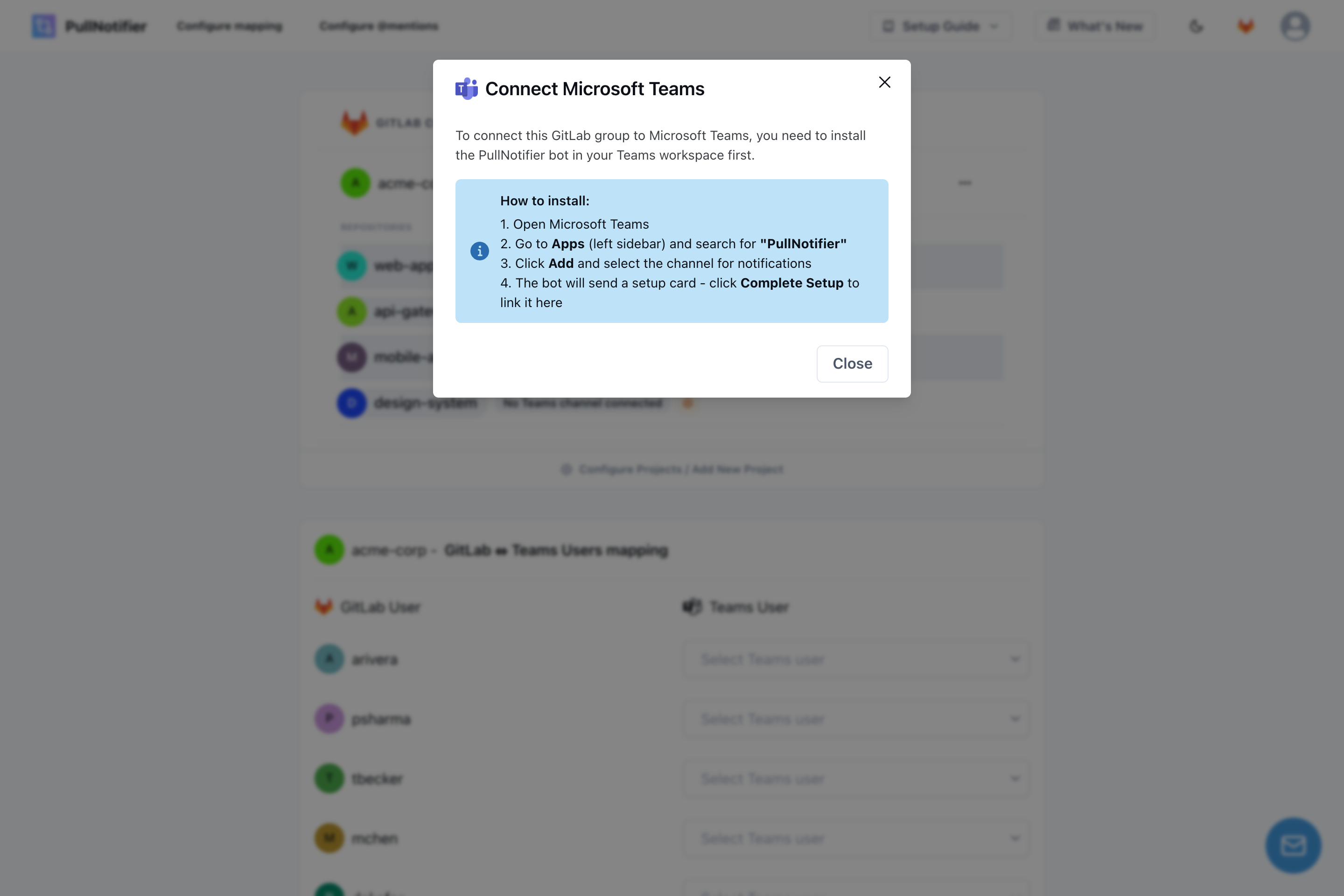
In Teams, open Apps, search for PullNotifier, click Add, and choose the channel. The bot posts a setup card; click Complete Setup and the dashboard shows the connection as live.
Set rules and map users
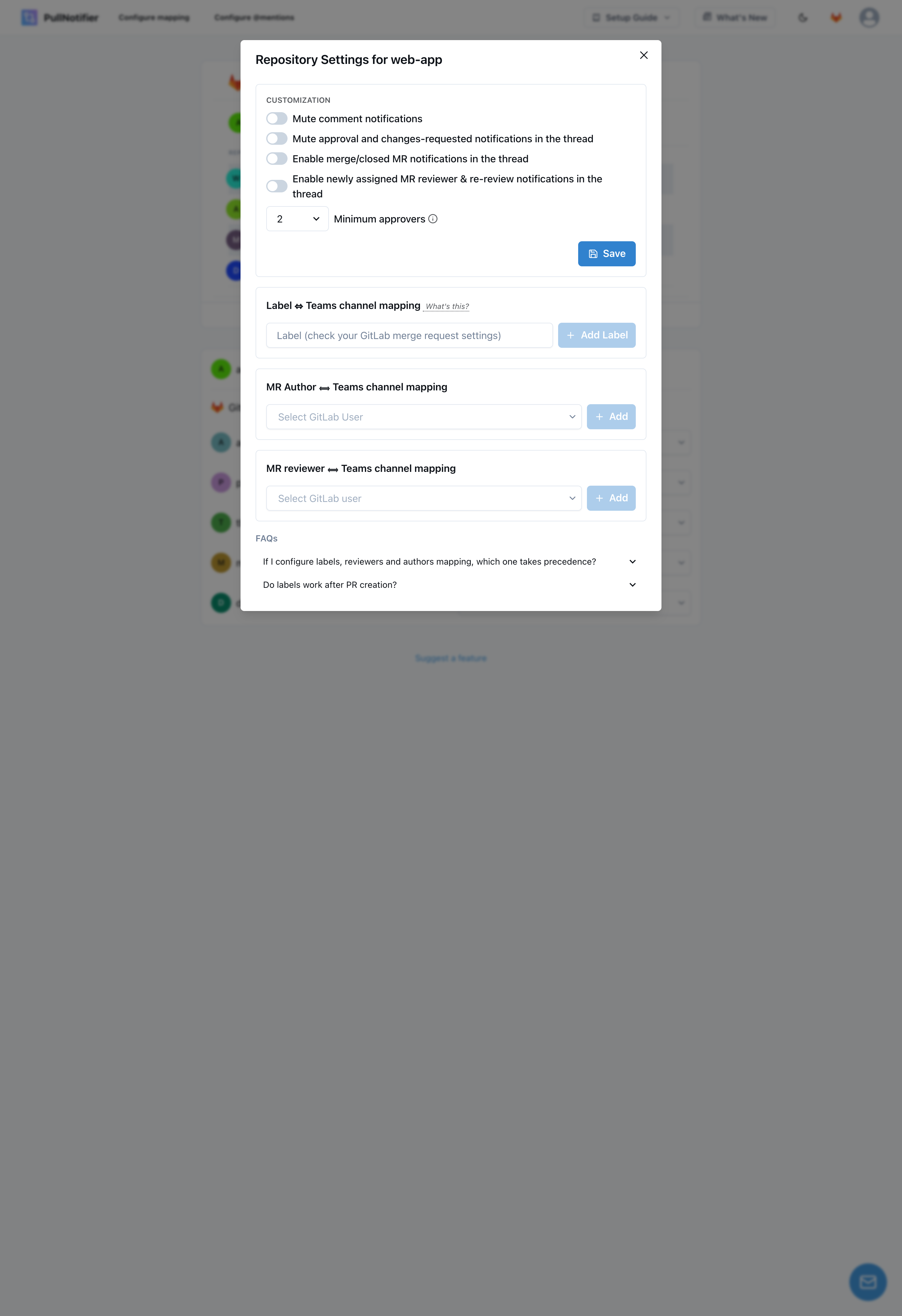
Open a project's gear icon to set required approvals, mute comments, skip drafts, or send a label or author to a different channel. Then map GitLab usernames to Teams users so review requests become real @mentions.
What you get that the other three methods do not
Six things that turn a notification channel into a review workflow.
One live card per merge request
Opened, new commits, comments, approvals, and merge all update the same Adaptive Card. The channel shows current state, not a scrolling log of events.
Reviewers actually get pinged
Map GitLab usernames to Teams users once. Review requests, approvals, and mentions then arrive as real @mentions in the channel, so the reviewer gets a Teams notification.
Per-project rules
Set the approvals a project needs, mute comment notifications, skip drafts, or send a label, author, or reviewer to a different Teams channel.
Approvals tracked on the card
Each approval increments the count on the card and the merge request is struck through when it merges. Anyone can see what is blocked without opening GitLab.
Works on the GitLab Free tier
PullNotifier registers per-project webhooks, which every GitLab tier supports. Group webhooks (a Premium feature) are not required.
No Power Automate, no workflow owner
The PullNotifier bot is installed in Teams like any other app. There is no workflow tied to a single licence that silently dies when someone leaves.
Try it next to whatever you run today
Connect GitLab first, then add the bot to Teams. Free for up to four developers, 14-day trial above that, no card required. Your native pipeline notifications can keep running in the same channel.
“Game Changer. It covers 99.9% of PR workflows while keeping notifications targeted to only those who need it. The other 0.1% of edge cases is quickly shrinking as they have responded to feature requests super quickly.”
Matthew A.
G2 verified review
Side by side
Native integration vs automation platforms vs PullNotifier
The raw webhook column is omitted because it does whatever you build; for merge requests it inherits every limit of the automation column plus your own maintenance.
| Feature | Native GitLab | Zapier / n8n / Make | PullNotifier |
|---|---|---|---|
| Merge request opened, approved, merged, closed | Separate cards | Separate messages | One card that updates |
| Reviewer @mentions in Teams | Plain-text usernames | Manual lookup per user | GitLab to Teams user mapping |
| Skip drafts and bot authors | Event type and branch only | Filter steps, per zap | Per-project rules |
| Route a label or author to another channel | One webhook, one channel | One path per rule | By project, label, author, or reviewer |
| Approval count visible on the notification | Approval event only | Not without extra API calls | Live on the card |
| Pipeline, push, issue, wiki events | All eight event types | Whatever the trigger exposes | Merge requests only |
| Self-managed GitLab | Yes | Yes | gitlab.com only for now |
| Works without Power Automate | Requires a workflow | Yes | Yes, Teams bot |
| Setup time for 10 projects and 3 channels | 30 workflows, a few hours | 1 to 3 hours | About 5 minutes |
| Pricing | Free (Power Automate licence needed) | Per task or execution | Free under 4 developers |
When the native GitLab integration is the right call
Stay with GitLab's built-in Microsoft Teams notifications when:
You mainly want pipeline, tag, or issue alerts, not merge request review.
You run self-managed GitLab and cannot use a gitlab.com-only tool yet.
You have one or two projects and one channel, and someone owns the Power Automate workflow.
A third-party Teams app cannot get through your tenant approval process.
Make it stick
Best practices for merge request notifications in Teams
These apply whichever method you pick. Teams that skip them end up with a muted channel within a month.
One channel per team, not per project
Route the projects a team owns into the channel that team already reads. A channel that mixes six unrelated projects gets muted within a week. Group and subgroup boundaries in GitLab usually map cleanly onto team channels.
Notify on merge requests, not on every push
Push events are the fastest way to drown a channel. Turn them off unless a specific branch needs an audit trail. Merge request, note, and pipeline (broken only) is the right default for most engineering teams.
Make review requests ping a person
A notification that nobody is mentioned in is a log entry. Map GitLab usernames to Teams users so a review request produces a real @mention. If your method cannot do that, expect reviewers to miss requests.
Use labels for routing, then enforce them
If hotfixes should reach a wider channel, make "hotfix" a real label and add it to your merge request template. Routing rules only work when the labels are applied consistently.
Own the integration with a service identity
Power Automate workflows and OAuth connections tied to a single engineer break when that engineer leaves. Create them from a shared service account, or use a tool that installs at the group level.
Restrict branches before you enable the integration
Enable "default branch only" or a protected-branch pattern first, then widen if needed. Enabling everything on a busy project floods the channel with banner notifications in the first hour.
When it breaks
Troubleshooting GitLab notifications in Microsoft Teams
The five failures we see most often, in order of likelihood. The full symptom-by-symptom guide is at GitLab Microsoft Teams notifications not working.
1.
Cards stopped arriving, no error in GitLab
Almost always the webhook URL. Legacy Office 365 connector URLs (the ones containing webhook.office.com) no longer accept posts. Create a Workflows webhook and replace the URL in the GitLab integration page.
2.
The workflow runs but fails on "Post card"
The default template expects an Adaptive Card. GitLab posts a connector card. Replace the action with "Post message in a chat or channel" and use the expression from the fix section above.
3.
Adaptive Card rejected as invalid
GitLab issue #565839 tracks a payload where the card arrives wrapped in contentType and content properties. Until it is fixed, post the inner content object rather than the whole attachment.
4.
Merge request events arrive but pipelines do not
Check the pipeline trigger and the two checkboxes under it. "Notify only broken pipelines" suppresses every successful run, and the branch filter applies to pipelines as well as merge requests.
5.
Notifications are duplicated
Two integrations pointing at the same channel. Teams that migrate often leave the old connector active alongside the new workflow. Disable one of them in GitLab, then delete the retired connector in Teams.
Migrating from a retired connector? The Office 365 Connector migration guide covers the inventory and decommission steps in detail.
Quick answers
Frequently asked questions
What GitLab teams ask before wiring up Microsoft Teams.
Yes, but not in the sense of a bot you install from the Teams app store. GitLab ships a project-level integration called "Microsoft Teams notifications". It posts cards to a webhook URL that you create in Teams. Since Microsoft retired Office 365 Connectors, that URL has to come from a Power Automate workflow, and the workflow needs a manual edit to accept the format GitLab sends. There are no commands, no threads, and no user mapping.
For the native GitLab integration, yes. The only supported way to obtain a webhook URL for a Teams channel is the Workflows app, which is Power Automate. Raw webhooks and automation platforms also end up posting through Workflows. PullNotifier does not use webhooks into Teams at all: it is a Teams bot, so no workflow is involved.
If your GitLab integration still points at a webhook.office.com connector URL, yes. Microsoft disabled Office 365 connectors between May 18 and May 22, 2026, after several extensions of the original deadline. GitLab's documentation still quotes the earlier December 2025 migration date. Create a Workflows webhook, apply the payload fix described in this guide, and paste the new URL into the GitLab integration page.
The "Send webhook alerts to a channel" template expects an Adaptive Card. GitLab sends the older Office 365 Connector Card format. Replace the "Post card in a chat or channel" action with "Post message in a chat or channel" and set the message to the expression triggerOutputs()?['body']?['attachments'][0]?['content']. GitLab issue #565839 tracks a related bug where the new Adaptive Card payload arrives wrapped and is rejected as invalid.
Yes. In the GitLab integration page, tick only "Merge request" (and "Note" if you want comments). Leave push, tag push, pipeline, issue, and wiki page unticked. You still cannot filter within merge requests, for example skipping drafts or bot authors. For that level of control you need an automation platform or PullNotifier.
Not with the native integration: it prints usernames as text. An automation platform can do it if you hand-build a lookup from GitLab username to Teams user ID for every person. PullNotifier has a user mapping screen that does this once for the whole group, so review requests, approvals, and mentions become real Teams @mentions.
The native integration, raw webhooks, and automation platforms all work with self-managed and Dedicated instances as well as gitlab.com. PullNotifier supports gitlab.com today. Self-managed support is on the roadmap; contact us if your team needs it and we will let you know when it ships.
Yes. Microsoft Teams notifications are available on GitLab Free, Premium, and Ultimate. On the Teams side you need a Microsoft 365 licence that includes the Workflows app, which most business tenants have.
No. PullNotifier is built around merge requests: opened, reviewed, approved, merged, commented. For pipeline and deploy alerts, keep the native integration with "Notify only broken pipelines" enabled, or a CI job that posts to a Workflows webhook. Both run happily alongside PullNotifier in the same channel.
It is free for teams with fewer than 4 developers. Larger teams get a 14-day free trial with no credit card, then pay per developer. Pricing is the same for GitLab and GitHub, and for Slack and Microsoft Teams.
Each connected group delivers to one platform at a time. Connect the group to the platform your reviewers actually watch, and switch it later from the dashboard. Separate groups can use different platforms.
Get GitLab merge requests into Microsoft Teams the way reviewers want them
One card per merge request, reviewers who actually get pinged, and no Power Automate workflow to babysit. Free for up to 4 developers.
Gabriel Pineda
Founder of PullNotifier. Writing about code review, async engineering, and the plumbing between GitLab, GitHub, and the chat tools teams already live in.