Microsoft Teams Setup Guide
Get PR notifications delivered to your Teams channels in minutes
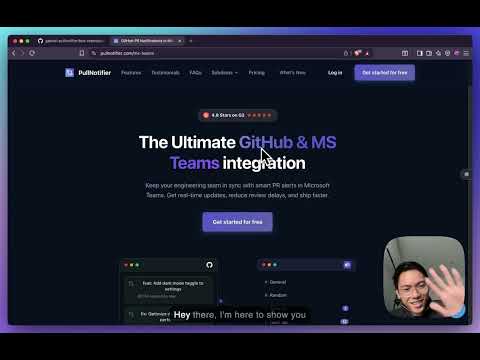
Watch the MS Teams Setup Guide
New to PullNotifier for Microsoft Teams? Watch our setup video to get started quickly and learn about all the features.
Prerequisites
- A Microsoft account with access to Microsoft Teams
- Teams admin access (or permission to install apps) in your organization
- A GitHub organisation or GitLab group already connected to PullNotifier
Setup Steps
Connect your GitHub organisation or GitLab group to PullNotifier
Visit the dashboard and click Add new connection. On GitHub, install the PullNotifier GitHub App on the repositories you want to monitor. On GitLab, connect your group and pick the projects.
Click "Connect Teams" in the dashboard
In the dashboard, find your organisation or group row and click Connect Teams in the "Connections" column. A guide will open with installation instructions for the next step.
Install the PullNotifier bot in Microsoft Teams
Open Microsoft Teams, go to Apps in the left sidebar, and search for PullNotifier. Click Add and select the channel where you want notifications delivered. The bot will post a setup card in that channel - click Complete Setup on the card to link the channel back to your PullNotifier dashboard.
Test your connection
Open the three-dot menu (⋯) and click Send sample notification. A test Adaptive Card should appear in your selected Teams channel within a few seconds.
What you get
Adaptive Card notifications for PR opened, reviewed, merged, and closed events
Live card updates - the same card is updated in place as the PR status changes
@mention support for PR authors and reviewers (requires user mapping)
Works alongside Slack - you can have both connected simultaneously
Need help? Reach out directly.
Hi, I'm Gabriel; founder of PullNotifier. I personally answer every message, usually within a few hours. Stuck on setup, hit a bug, or want a feature? Pick whichever option works best for you.